
How to Stop Email Spam
Eliminate spam from your inbox with these actionable strategies. Learn how burner emails, filters, and smart habits can protect you from unwanted messages.
How to Stop Email Spam Forever: 7 Proven Tactics for 2026
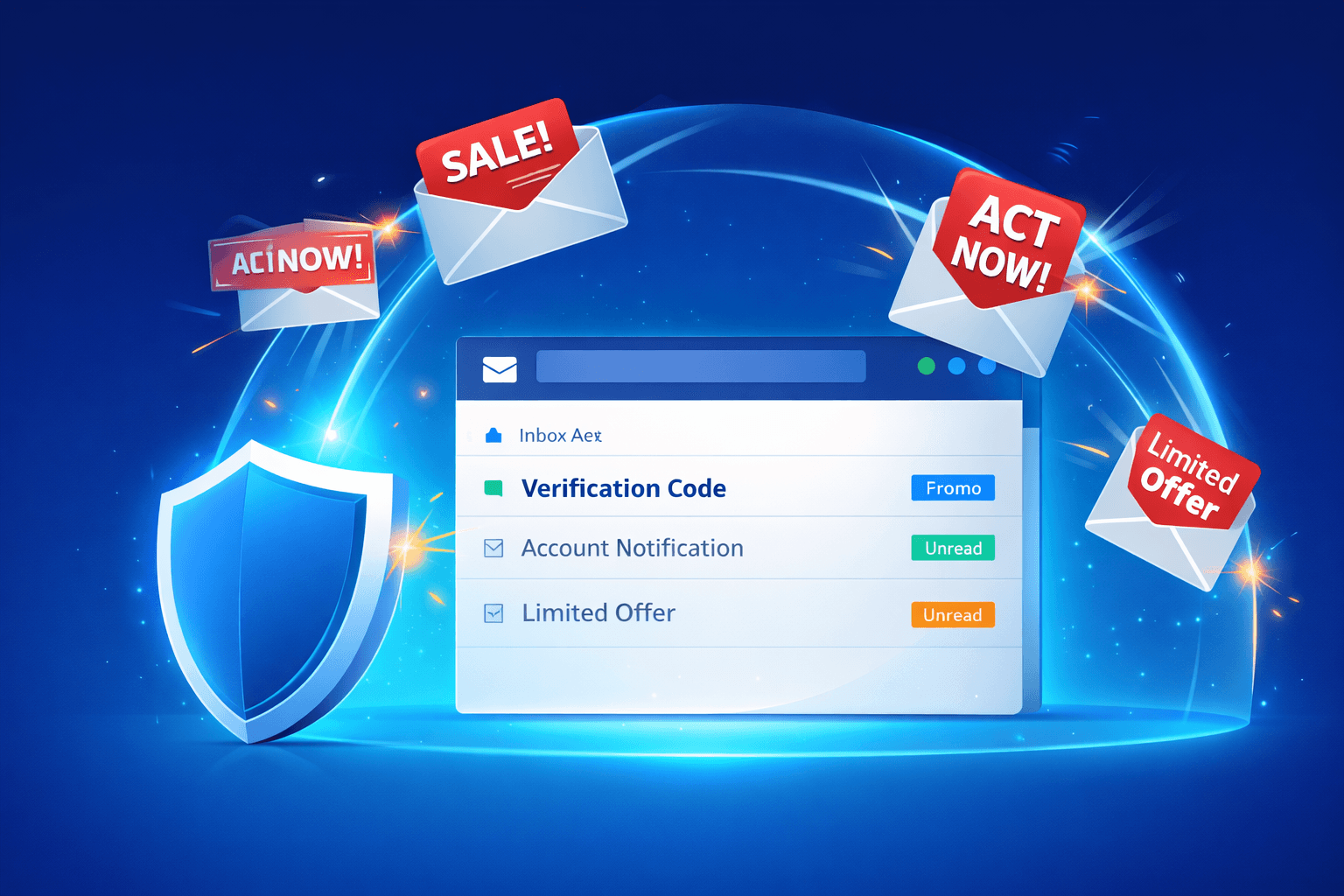
Your inbox should be a tool, not a burden. Promotional blasts, phishing attempts, and unsolicited newsletters consume time, create stress, and bury the messages that actually matter.
The good news? You don't have to accept this as normal. With the right combination of tools and habits, you can reclaim your inbox and dramatically reduce spam exposure.
Understanding Why Spam Happens
Before we discuss solutions, it helps to understand how your email address ends up on spam lists in the first place.
Data Breaches and Leaks
When a company experiences a security breach, hackers steal user databases containing millions of email addresses. These lists get sold on dark web marketplaces, and suddenly your address is in the hands of spammers worldwide.
Third-Party Sharing
That checkbox you didn't uncheck during signup? It gave the company permission to share your email with "trusted partners." Each partner has their own partners, and the cycle continues.
Email Harvesting Bots
Automated programs scan public websites, forums, and social media profiles looking for email addresses. Once they find yours, it gets added to mass marketing lists.
Public Records
Sometimes your email becomes publicly available through domain registration records, professional directories, or government databases. Spammers scrape these sources constantly.
The common thread? Once your email address enters the wild, there's no putting it back in the bottle. That's why prevention matters more than cure.
Tactic #1: Use Burner Emails for New Signups
The single most effective way to stop spam is to stop giving out your real email address in the first place.
Every time a website asks for your email, ask yourself: "Will I need permanent access to this account?" If the answer is no, use a temporary address instead.
Where Burner Emails Excel:
- Newsletter subscriptions you're unsure about
- Contest entries and giveaways
- One-time downloads (e-books, templates, reports)
- Website registration just to read a single article
- Free trial signups
- Beta testing new apps or services
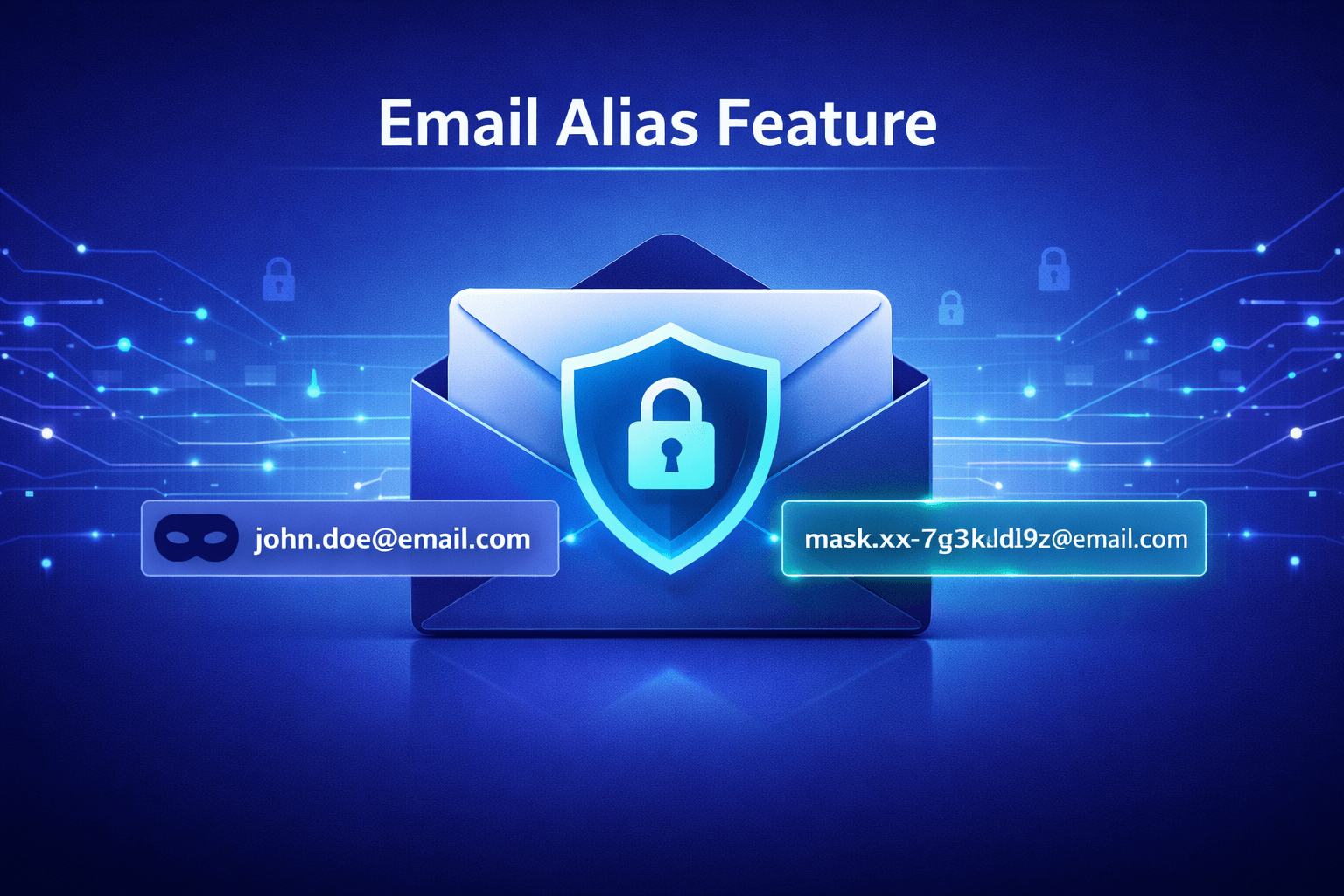
With Xeramail, you can generate a unique temporary address in seconds. If that address eventually receives spam, it doesn't matter because you'll never use it again.
Pro Tip: Create custom burner addresses that reflect the service. For example, use shopping-site-name@xeramail.com so you know exactly which company leaked or sold your data if spam appears.
Tactic #2: Implement the "Secondary Email" Buffer
Not every situation calls for a burner email. Some accounts require long-term access but don't deserve your primary inbox.
Create a secondary permanent email address specifically for online shopping, social media accounts, and subscription services. Think of it as a middle ground between your primary email and disposable addresses.
Primary Email: Banking, work, healthcare, government, close contacts
Secondary Email: Retail accounts, streaming services, loyalty programs, hobby forums
Burner Emails: Everything else
This three-tier system ensures spam from online shopping never touches your most important inbox.
Tactic #3: Unsubscribe Ruthlessly (But Carefully)
The unsubscribe link at the bottom of marketing emails exists for a reason. Use it consistently, but with caution.
When to Unsubscribe:
- Emails from legitimate companies you recognize
- Marketing from businesses you've purchased from before
- Newsletters you originally wanted but no longer read
When to Delete Without Unsubscribing:
- Suspicious emails from senders you don't recognize
- Messages with poor grammar or generic greetings
- Emails that seem like phishing attempts
Why the distinction? Clicking unsubscribe on sketchy emails confirms your address is active, which can actually increase spam. When in doubt, just delete.
Time-Saving Tool: Gmail users can use the built-in unsubscribe feature that appears at the top of marketing emails. This bypasses the need to scroll to the footer and adds the sender to your filter list simultaneously.
Tactic #4: Master Email Filters and Rules
Modern email providers offer sophisticated filtering systems that automatically sort incoming messages. Setting up filters takes 15 minutes but saves hours every month.
Essential Filters to Create:
Filter Marketing Keywords
Create a filter that automatically archives or deletes messages containing phrases like:
- "Unsubscribe here"
- "You're receiving this because"
- "Limited time offer"
- "Exclusive deal"
Filter by Sender Domain
Identify repeat offenders and create domain-level filters. For example, block all emails from @promotional-domain.com rather than playing whack-a-mole with individual sender addresses.
Whitelist Important Contacts
Create a filter that marks emails from your key contacts as important and ensures they never hit the spam folder. This is especially useful for freelancers and business owners who can't afford to miss client messages.
Create Priority Inbox Rules
Gmail's Priority Inbox and Outlook's Focused Inbox learn from your behavior, but you can accelerate the training by manually marking messages as important or moving them between tabs.
Tactic #5: Never Display Your Email Publicly
If your email address is visible on your website, social media profile, or business listing, harvesting bots will find it.
Alternatives to Displaying Your Email:
Contact Forms
Instead of showing your email, embed a contact form. The message reaches your inbox without exposing your address publicly.
Email Obfuscation
If you must display an email address, obfuscate it. Write it as "contact [at] yoursite [dot] com" or use an image instead of text.
Create a Dedicated Contact Address
Set up a separate email specifically for public-facing contact. Forward important messages to your real inbox while filtering the spam that inevitably accumulates.
Use Professional Platforms
LinkedIn, professional directories, and portfolio sites offer built-in messaging systems. Use those instead of exposing your direct email address.
Tactic #6: Enable Advanced Spam Protection
Email providers constantly improve their spam detection, but you need to activate some features manually.
Gmail Users
- Enable "Smart Features" in Settings for AI-powered spam detection
- Use the "Report Spam" button consistently to train the algorithm
- Enable "Confidential Mode" for sensitive communications
- Set up 2FA to prevent account takeover
Outlook Users
- Adjust Junk Email Filter to "High" in settings
- Add trusted senders to your Safe Senders list
- Enable "Focused Inbox" to separate important messages
- Use "Sweep" to bulk-delete emails from specific senders
iPhone Mail Users
- Swipe left on spam and select "Move to Junk"
- Go to Settings > Mail > Blocked and add persistent spammers
- Enable "Filter Unknown Senders" under Settings > Mail
Third-Party Tools
Consider dedicated spam filtering services like SpamTitan, Mailwasher, or Cloudflare Email Routing for advanced protection beyond what standard providers offer.
Tactic #7: Regular Inbox Maintenance
Spam prevention isn't a one-time fix. It requires ongoing attention, but the maintenance becomes easier over time.
Monthly Tasks:
- Review your subscription list and unsubscribe from anything you haven't opened in 30 days
- Check your spam folder for false positives (important emails incorrectly marked as spam)
- Update your filters based on new spam patterns you've noticed
Quarterly Tasks:
- Audit which services have your email address
- Change the password on your primary email account
- Review privacy settings on social media to ensure your email isn't public
Annual Tasks:
- Consider creating a completely new primary email address if your current one is too compromised
- Export important emails and archive old messages to keep your inbox lean
- Review all third-party apps connected to your email account and revoke access to unused services
The Nuclear Option: Starting Fresh
If your email address is severely compromised and receiving hundreds of spam messages daily, sometimes the best solution is starting over.
How to Transition Safely:
- Create a new primary email address
- Update your most important accounts first (banking, work, healthcare)
- Set up forwarding from old address to new address temporarily
- Gradually update less critical accounts over 2-3 months
- Eventually disable the old address once all important contacts have the new one
This seems extreme, but for many people, it's faster than trying to salvage an inbox receiving 300+ spam messages per day.
Combining Tactics for Maximum Protection
These seven tactics work best when used together. Here's a practical implementation plan:
Week 1: Set up Xeramail and start using burner emails for all new signups
Week 2: Create a secondary permanent email and migrate appropriate accounts to it
Week 3: Spend 30 minutes setting up filters and rules in your primary inbox
Week 4: Go through current subscriptions and unsubscribe from anything you don't actively read
Ongoing: Maintain these habits and your spam will decrease by 80-90% within a month
The Bottom Line
Spam isn't inevitable. It's the result of giving your email address to too many services without protection. By implementing these tactics, you shift from reactive (constantly deleting spam) to proactive (preventing spam from reaching you in the first place).
The foundation of any good anti-spam strategy is using the right email address for the right situation. Your primary inbox deserves protection, and burner emails provide that protection without sacrificing convenience.
Start protecting your inbox today at Xeramail.com generate unlimited temporary addresses and take back control of your email.
Frequently Asked Questions
Will spam filters block important emails?
Modern spam filters are sophisticated, but false positives happen. Check your spam folder once per week to catch any legitimate messages that were incorrectly filtered.
How do spammers bypass spam filters?
Spammers constantly evolve their tactics. They use legitimate email services, vary their content to avoid detection patterns, and purchase clean IP addresses. This arms race is why personal prevention (using burner emails) matters more than relying solely on filters.
What's the difference between spam and phishing?
Spam is unsolicited marketing. Phishing is a criminal attempt to steal your personal information or money by impersonating a legitimate entity. Both are unwanted, but phishing is significantly more dangerous. Never click links in suspicious emails.
Is it better to mark as spam or just delete?
Always mark as spam rather than just deleting. This trains your email provider's algorithm and helps protect other users. The "Mark as Spam" button is more effective than the delete button for long-term inbox cleanliness.